How to solve Unhandled Error in Silverlight Application Code: 2104
Tags: IIS, MimeTypes
I’ve found that I get this error every time I upload a Silverlight application to a new webserver. IIS does not have the correct settings by default.
The Problem: You ftp a Silverlight App to an IIS website, go to the website in a browser, and get the following error:
Message: Unhandled Error in Silverlight Application
Code: 2104
Category: InitializeError
Message: Could not download the Silverlight application. Check web server settings
The Cause: The Silverlight Mime types (.xaml, .xap and .xbap) are not listed in that websites registered mime types, therefore IIS will not send those files to the browser.
The Solution: Open IIS on the server, go to HTTP headers, click on Mime Types, click “Add New” and add the following:
Extension – Mime Type
.xaml – application/xaml+xml
.xap – application/x-silverlight-app
.xbap – application/x-ms-xbap
Showing posts with label Silverlight. Show all posts
Showing posts with label Silverlight. Show all posts
Wednesday, November 10, 2010


Wednesday, August 11, 2010
ClickOnce: Application does not install when the time of Deployment
After running the publish wizard and running the setup.exe, a message box is shown saying that the "Application cannot be started. Contact the application vendor".
ERROR DETAILS
PLATFORM VERSION INFO
Windows : 6.1.7600.0 (Win32NT)
Common Language Runtime : 4.0.30319.1
System.Deployment.dll : 4.0.30319.1 (RTMRel.030319-0100)
clr.dll : 4.0.30319.1 (RTMRel.030319-0100)
dfdll.dll : 4.0.30319.1 (RTMRel.030319-0100)
dfshim.dll : 4.0.31106.0 (Main.031106-0000)
SOURCES
Deployment url : file:///G:/OFFICE/R&D/Silverlight/Examples/WPF/BackupDB/Published/BackupDB.application
Application url : file:///G:/OFFICE/R&D/Silverlight/Examples/WPF/BackupDB/Published/Application%20Files/BackupDB_1_0_0_3/BackupDB.exe.manifest
IDENTITIES
Deployment Identity : BackupDB.application, Version=1.0.0.3, Culture=neutral, PublicKeyToken=28500bade1fb75cf, processorArchitecture=msil
Application Identity : BackupDB.exe, Version=1.0.0.3, Culture=neutral, PublicKeyToken=28500bade1fb75cf, processorArchitecture=msil, type=win32
APPLICATION SUMMARY
* Installable application.
ERROR SUMMARY
Below is a summary of the errors, details of these errors are listed later in the log.
* An exception occurred while determining trust. Following failure messages were detected:
+ Value does not fall within the expected range.
* Activation of G:\OFFICE\R&D\Silverlight\Examples\WPF\BackupDB\Published\BackupDB.application resulted in exception. Following failure messages were detected:
+ Value does not fall within the expected range.
COMPONENT STORE TRANSACTION FAILURE SUMMARY
No transaction error was detected.
WARNINGS
There were no warnings during this operation.
COMPONENT STORE TRANSACTION DETAILS
No transaction information is available.
------------------------------------------------------------
Solution:
This is Known Issue Currently and Simple workaround is don't use "&" in File path of Clickonce publish location.
ERROR DETAILS
PLATFORM VERSION INFO
Windows : 6.1.7600.0 (Win32NT)
Common Language Runtime : 4.0.30319.1
System.Deployment.dll : 4.0.30319.1 (RTMRel.030319-0100)
clr.dll : 4.0.30319.1 (RTMRel.030319-0100)
dfdll.dll : 4.0.30319.1 (RTMRel.030319-0100)
dfshim.dll : 4.0.31106.0 (Main.031106-0000)
SOURCES
Deployment url : file:///G:/OFFICE/R&D/Silverlight/Examples/WPF/BackupDB/Published/BackupDB.application
Application url : file:///G:/OFFICE/R&D/Silverlight/Examples/WPF/BackupDB/Published/Application%20Files/BackupDB_1_0_0_3/BackupDB.exe.manifest
IDENTITIES
Deployment Identity : BackupDB.application, Version=1.0.0.3, Culture=neutral, PublicKeyToken=28500bade1fb75cf, processorArchitecture=msil
Application Identity : BackupDB.exe, Version=1.0.0.3, Culture=neutral, PublicKeyToken=28500bade1fb75cf, processorArchitecture=msil, type=win32
APPLICATION SUMMARY
* Installable application.
ERROR SUMMARY
Below is a summary of the errors, details of these errors are listed later in the log.
* An exception occurred while determining trust. Following failure messages were detected:
+ Value does not fall within the expected range.
* Activation of G:\OFFICE\R&D\Silverlight\Examples\WPF\BackupDB\Published\BackupDB.application resulted in exception. Following failure messages were detected:
+ Value does not fall within the expected range.
COMPONENT STORE TRANSACTION FAILURE SUMMARY
No transaction error was detected.
WARNINGS
There were no warnings during this operation.
COMPONENT STORE TRANSACTION DETAILS
No transaction information is available.
------------------------------------------------------------
Solution:
This is Known Issue Currently and Simple workaround is don't use "&" in File path of Clickonce publish location.
Thursday, August 5, 2010
Silverlight Isolated Storage File/Directory Location
I was just building something in Silverlight that makes use of the Isolated Storage, and I uncovered a bug in Silverlight 2 Beta 2 that cause's it to crash and you are unable to write to the Isolated Storage. So, I found the location on disk where Silverlight stores the files for Isolated Storage.
Here's the file location under Windows Vista / Windows 7 where Silverlight stores the files for Isolated Storage:
C:\Users\{username}\AppData\LocalLow\Microsoft\Silverlight\is
Just replace the text "{username}" with the Windows Username of the user the data is stored for.
The bug that I ran into was also causing the Silverlight Configuration dialog (which pops up when you right click on Silverlight content within the browser) to crash when I selected the Application Storage tab. So, this bug prevented me from clearing the cache, and I wasn't able to get my app working again. I just deleted all the files within the above directory and it fixed my problem.
Here's the file location under Windows Vista / Windows 7 where Silverlight stores the files for Isolated Storage:
C:\Users\{username}\AppData\LocalLow\Microsoft\Silverlight\is
Just replace the text "{username}" with the Windows Username of the user the data is stored for.
The bug that I ran into was also causing the Silverlight Configuration dialog (which pops up when you right click on Silverlight content within the browser) to crash when I selected the Application Storage tab. So, this bug prevented me from clearing the cache, and I wasn't able to get my app working again. I just deleted all the files within the above directory and it fixed my problem.
Wednesday, January 27, 2010
Working with Crossdomain Client Access Policy
Working with Crossdomain Client Access Policy
We have seen that all accesses from Silverlight application out of the domain are forbidden by default. However it is necessary to allow accesses from other domains in some situations.
Actually at the access to a resource from other domain, Silverlight Runtime checks if "clientaccesspolicy.xml" file which should be in a root of the given domain exists. If this file is found, parameters of the access to this domain are set in it.
If the file is not found, attempt of search of "crossdomain.xml" file, which is necessary for Adobe Flash applications work, will be made. If both files are not found, the access to the domain is blocked outside.
To understand how it works, let us make some experiments. For this purpose we need to create some websites that work in different domains. For our experiment, such sites can be defined in a "hosts" file which is located in a "%windir %\System32\drivers\etc" folder. For example, it is possible to define this file as follows.
Listing 4 - The "host" file sample
127.0.0.1 site1.com
127.0.0.1 api.site1.com
127.0.0.1 subdomain.api.site1.com
127.0.0.1 site2.com
127.0.0.1 site3.comFrom this listing we can see that we define some domains which refer to local IP-address. It is now necessary to create in some sites in IIS for each of the domains.
Let us place a file "data.xml" on a web-site "api.site1.com" and we will create small Silverlight application which will access this file. There will be some lines of a code which load a XML-file in an asynchronous mode to this application.
Listing 5 - Sample of Silverlight application
private void GetDataButton_Click(object sender, RoutedEventArgs e)
{
var client = new WebClient();
client.DownloadStringCompleted += client_DownloadStringCompleted;
client.DownloadStringAsync(new Uri(ServerURI.Text));
Data.Text = "Loading..";
}
void client_DownloadStringCompleted(object sender, DownloadStringCompletedEventArgs e)
{
if (e.Error == null)
{
Data.Text = e.Result;
}
else
{
Data.Text = "Error: " + e.Error.ToString();
}
}Let us place this application in each domain and try to access to service. Now applications in all domains, except api.site1.com, will throw a SecurityException.
To resolve cross-domain access to "api.site1.com" the domain we will place "clientaccesspolicy.xml" within a web-site "api.site1.com". Thus this file should have the address "http://api.site1.com/clientaccesspolicy.xml". This file has the following format.
Listing 6 - Sample of "clientaccesspolicy.xml" file
Besides, it is possible to adjust the policy so that access is possible from only some domains. For example, the "clientaccesspolicy.xml" file can look as follows.
Listing 7 - Sample of "clientaccesspolicy.xml" file
In other case we can define not only certain domains, but also subdomains.
Listing 8 - Sample of "clientaccesspolicy.xml" file
Also it is possible to limit which port and protocol will be used. For example, we will allow access only via HTTPS for all sites.
Listing 9 - Sample of "clientaccesspolicy.xml" file
Listing 10 - Sample of "clientaccesspolicy.xml" file
In this case cross-domain access is allowed only in case of this header presence.
Listing 11 - Sample of "clientaccesspolicy.xml" file
We have seen that all accesses from Silverlight application out of the domain are forbidden by default. However it is necessary to allow accesses from other domains in some situations.
Actually at the access to a resource from other domain, Silverlight Runtime checks if "clientaccesspolicy.xml" file which should be in a root of the given domain exists. If this file is found, parameters of the access to this domain are set in it.
If the file is not found, attempt of search of "crossdomain.xml" file, which is necessary for Adobe Flash applications work, will be made. If both files are not found, the access to the domain is blocked outside.
To understand how it works, let us make some experiments. For this purpose we need to create some websites that work in different domains. For our experiment, such sites can be defined in a "hosts" file which is located in a "%windir %\System32\drivers\etc" folder. For example, it is possible to define this file as follows.
Listing 4 - The "host" file sample
127.0.0.1 site1.com
127.0.0.1 api.site1.com
127.0.0.1 subdomain.api.site1.com
127.0.0.1 site2.com
127.0.0.1 site3.comFrom this listing we can see that we define some domains which refer to local IP-address. It is now necessary to create in some sites in IIS for each of the domains.
Let us place a file "data.xml" on a web-site "api.site1.com" and we will create small Silverlight application which will access this file. There will be some lines of a code which load a XML-file in an asynchronous mode to this application.
Listing 5 - Sample of Silverlight application
private void GetDataButton_Click(object sender, RoutedEventArgs e)
{
var client = new WebClient();
client.DownloadStringCompleted += client_DownloadStringCompleted;
client.DownloadStringAsync(new Uri(ServerURI.Text));
Data.Text = "Loading..";
}
void client_DownloadStringCompleted(object sender, DownloadStringCompletedEventArgs e)
{
if (e.Error == null)
{
Data.Text = e.Result;
}
else
{
Data.Text = "Error: " + e.Error.ToString();
}
}Let us place this application in each domain and try to access to service. Now applications in all domains, except api.site1.com, will throw a SecurityException.
To resolve cross-domain access to "api.site1.com" the domain we will place "clientaccesspolicy.xml" within a web-site "api.site1.com". Thus this file should have the address "http://api.site1.com/clientaccesspolicy.xml". This file has the following format.
Listing 6 - Sample of "clientaccesspolicy.xml" file
Besides, it is possible to adjust the policy so that access is possible from only some domains. For example, the "clientaccesspolicy.xml" file can look as follows.
Listing 7 - Sample of "clientaccesspolicy.xml" file
In other case we can define not only certain domains, but also subdomains.
Listing 8 - Sample of "clientaccesspolicy.xml" file
Also it is possible to limit which port and protocol will be used. For example, we will allow access only via HTTPS for all sites.
Listing 9 - Sample of "clientaccesspolicy.xml" file
Listing 10 - Sample of "clientaccesspolicy.xml" file
In this case cross-domain access is allowed only in case of this header presence.
Listing 11 - Sample of "clientaccesspolicy.xml" file
Debugging Web Service Usage in Silverlight 2
Debugging Web Service Usage in Silverlight 2
(Cross-posted from http://eugeneos.blogspot.com/2008/04/debugging-web-service-usage-in.html)
Silverlight 2 Beta1 makes it easy to use Web Services based on either the WCF technology (Windows Communication Foundation), the “.asmx” technology (ASP.NET Web Services), or practically any other SOAP platform.
Unfortunately, when something goes wrong with service consumption, you often run into cryptic and incomprehensible error messages that don’t help you much. We are looking into various ways to make this better by the time we fully ship Silverlight 2, but for now I hope that this post will be useful in helping you debug common problems. Here are the things you can try:
Does your proxy compile?
After you use the “Add Service Reference” dialog to add a reference to a service, try building your project. If you get compilation issues in the generated proxy code, you are probably using a service that uses some feature that is not supported in Beta1. We are trying to fix all or most of these by the time we ship, but for now the easiest thing to do is to find the offending code in the generated proxy and just remove it – naturally this workaround does not work in all cases :) Some common things that will cause non-compilable proxies in Beta1:
- Using custom SOAP headers in your service
- Using custom SOAP faults
- Using “wildcard” schema in your service like xsd:any or xsd:anyattribute
And specifically if your service is a WCF (or in some cases .ASMX) service:
- Using XML types like XmlElement/XElement/XmlNode[]/XmlAttribute/etc. in your service
- Using Datasets in your service
- Using types that implement ISerializable in your service (except for collections)
- Using WCF Transactions features
- Using the Stream type in your service
- Using MessageHeaderAttribute in Message Contracts
Check the Configuration
The next step is to check whether the service is configured correctly. You should have a file called ServiceReferences.ClientConfig generated by Add Service Reference. It actually doesn’t do anything at all in Beta1! This (understandably) confuses a lot of people. Starting with Beta2, we will actually start using this file, but for now any changes that you’ll make in it won’t actually affect anything.
However, the file is still useful for debugging. Look in the file – it should look something like this:
Notice that it has exactly one endpoint element for the service you just added a reference to, and the binding is basicHttpBinding.
If you don’t see an endpoint element for your service, chances are your service wasn’t actually configured correctly for Silverlight consumption. Silverlight can only talk to simple SOAP services at this point – only SOAP 1.1, without any advanced WS-* protocols like WS-Addressing or WS-Security. If you are using “.ASMX” web services, they should just default to this simple configuration. If you are using WCF services, you need to check the configuration on the service side. Open web.config in your service-side project and find a place that looks like the following (usually towards the end):
...
...
Find the endpoint whose “contract” attribute refers to your service. Make sure that the “binding” attribute is set to “basicHttpBinding”. Unfortunately the default for WCF is “wsHttpBinding”, but it doesn’t work with Silverlight. We are hoping to ship a Visual Studio item template in the future (“Add New Item… Silverlight-enabled WCF Service”) that will have a number of Silverlight-friendly defaults, including the correct binding.
It is ok to have other endpoint elements for other contracts with other bindings - for example, do not change the "mexHttpBinding" in the second endpoint element above.
You should check your service-side configuration even if the client-side ServiceReferences.ClientConfig appears to be correct.
If ServiceReferences.ClientConfig contains more than one endpoint for your service, you may need to use a more complicated constructor to new up your service proxy – the one that takes a Binding and an EndpointAddress. Not to worry – just pass a new BasicHttpBinding() and a new EndpointAddress built from the URL of your service.
By the way, our long-term (post-Beta1) plans for the config file are described here: http://blogs.msdn.com/suwatch/archive/2008/04/07/tutorial-using-silverlight-web-service-client-configuration.aspx
Check if the Service is Running
Before looking for problems on the Silverlight side, it is useful to first check whether the service itself is working. A quick-and-dirty way to check is to just type the service address into a web browser (not the address you typed into the “Add Service Reference” dialog, but the address you can find in ServiceReferences.ClientConfig). In many cases, the “service help page” feature will be turned on and you will see either a page indicating that the service is running, or an error page which you can use as a starting point for debugging.
A more reliable way to test whether the service is working is to use a test tool such as the WCF Test Client (http://msdn2.microsoft.com/en-us/library/bb552364.aspx) to try and talk to the service.
Finally, an almost sure-fire but sometimes lengthy way of finding out whether the problem is with the Silverlight code or with the service code is to try using the service without Silverlight :) Just create a new project of type “Console Application”, do an Add Service Reference to that project just like in Silverlight, and write service consumption code inside Main() – again, just like in Silverlight. Use Console.WriteLine to show the results.
Check for Cross-Domain Issues
Start your Silverlight application. Note the URL that appears in the browser (e.g. http://localhost:1111/something/MyGraphicalApp.aspx) – this is your “Application URL”. (Actually, what matters here is the URL of the XAP file, e.g. http://localhost:1111/somethingelse/MyGraphicalApp.xap, but in most simple cases this URL would be in the same domain as the hosting web page, so I’m ignoring the difference for now). Then, look at the URL in the ServiceReferences.ClientConfig file – e.g. http://localhost:5678/foo/TestService.svc or local.live.com/SearchService/LocalSearch.asmx - this is your “Service URL”.
In Beta1, both the “Application URL” and the “Service URL” must be HTTP URLs (not HTTPS) for service consumption to work. This is the first thing to check.
Also, a common mistake is to run your Silverlight application from a file:// Application URL, resulting in cross-domain issues. Sometimes, you run into this if you just hit F5 to run your Silverlight app – instead, right-click on the .aspx page in your project and choose “View in Browser”.
Now you need to figure out the domains for these URLs. The domain is just the basically everything between http:// and the first slash / after that, including the port number (assumed to be 80 if not present). If the domain of the Application URL is different in any way from the domain of the Service URL in any way (even if it’s just a port number difference, or just one part of the domain name is different), you have a cross-domain situation. For example, if your app is at http://localhost:1111/something/MyGraphicalApp.aspx and it is trying to call into http://localhost:5678/foo/TestService.svc, you have a cross-domain situation because localhost:1111 is different from localhost:5678.
Silverlight documentation tells you that if you are in a cross-domain situation, you need to have a “cross-domain policy file” (clientaccesspolicy.xml or crossdomain.xml) present if you want services to work. There is an easy way to check if you have everything set up correctly: Just open a browser and browse to http://service_domain/clientaccesspolicy.xml and http://service_domain/crossdomain.xml. If at least one of these is present, valid and allows cross-domain access – you’re fine. If not, you need to make sure at least one of these files is present.
A common mistake is to put the cross-domain policy file not directly at the root of the domain – for example, at http://localhost:5678/foo/clientaccesspolicy.xml instead of at http://localhost:5678/clientaccesspolicy.xml. It is easy to run into this situation when working with older (.NET 2.0) projects – see http://timheuer.com/blog/archive/2008/04/09/silverlight-cannot-access-web-service.aspx.
Also, make sure to check the syntax of these files – an error in parsing will be treated essentially the same way as if the file was not there. Also note that clientaccesspolicy.xml and crossdomain.xml have different syntax – make sure you use the appropriate content for the file you choose.
A neat trick for adding cross-domain policy files to WCF services that are not hosted in IIS is described here: http://blogs.msdn.com/carlosfigueira/archive/2008/03/07/enabling-cross-domain-calls-for-silverlight-apps-on-self-hosted-web-services.aspx
Enable Exceptions
Normally, Silverlight does not give you much information in exception messages. This decision was made to make the Silverlight download size smaller (exceptions take up a lot of space, especially once they’re translated into all of the languages Silverlight supports). You can read more about this, and find out how to turn on full exceptions for debugging, here: http://blogs.msdn.com/silverlightws/archive/2008/04/06/getting-full-exceptions-in-silverlight-2-beta-1.aspx
Also, if you are using a WCF service, WCF does not normally return much information about server-side exceptions. This is a security measure: you normally don’t want to expose internal information about your service to the outside world. However, during debugging, you can change this by following the steps here: http://blogs.devdeo.com/carlos.medina/PermaLink,guid,b3bff742-0ec9-4f5c-a178-625220a46652.aspx. Make sure to turn it off once you’re done debugging!
Finally, this seems obvious but a lot of people forget about it for some reason - when you get an exception, don’t just look at the exception itself - look at its innerException, and the innerException inside it, etc. Especially in web service scenarios, the truly useful exceptions are often “wrapped” in several layers.
Unfortunately, even with all of the steps above, you often still won’t see much useful information when a web service call fails. This is due to a pretty fundamental limitation of Silverlight Beta1 (that unfortunately may stay around even after the Beta) – the lack of support for SOAP Faults. So, to truly debug, you need to see what is actually going on – this is what the next section is about.
Getting Down to the Wire
The ultimate way to debug Silverlight service consumption issues is by using an “HTTP spying” tool such as http://www.fiddlertool.com/fiddler/ or http://projects.nikhilk.net/webdevhelper/ that shows you the actual HTTP traffic as it happens. Before using it, make sure to enable server-side exceptions (see above). Start your Silverlight app and your tool side-by-side, and make your app do a web service call. Here are some common patterns you will see:
1.Nothing
- Your HTTP spying tool may be misconfigured (try running another, non-Silverlight app, like a regular web browser, to make sure it works)
- Your app may be broken – put a breakpoint where you invoke the service, make sure it’s hit
- You may have a configuration issue – see Configuration section above
- You may be trying to host your application from a file:// or https:// URL, or trying to call an https:// service
2. Just a service request
- Congratulations – you’ve avoided a cross-domain situation if you see the actual request to the service on the wire.
- Is the address what you expected it to be?
- Look at what’s coming back. Is it timing out or are you getting a 404? Your service or even WCF itself may not be set up correctly.
- Are you getting a SOAP fault back? If so, read carefully what’s in the fault – it will usually have enough information to debug the issue.
- In general, look very carefully at both the request and the reply (including the body and HTTP headers)
- Did you remove anything to get the proxy to compile? The service may actually require some items that you removed (e.g. may require certain SOAP headers)
3. A request to clientaccesspolicy.xml (and possibly crossdomain.xml afterwards), followed by a request to the service
- Congratulations – you have a cross-domain situation but you have successfully set up your cross-domain policy files
- This is now equivalent to situation #2 above
4. Just a request to clientaccesspolicy.xml and nothing else
- Most likely a malformed clientaccesspolicy.xml, or one that contains a policy that forbids cross-domain access
5. A request to clientaccesspolicy.xml, then crossdomain.xml, then nothing else
- Basically, something went wrong with cross-domain policy files.
- Are you getting 404s back? Check if you’re hosting the files correctly and at the correct locations
- Are you getting the actual files back? They may be malformed or may forbid cross-domain access
(Cross-posted from http://eugeneos.blogspot.com/2008/04/debugging-web-service-usage-in.html)
Silverlight 2 Beta1 makes it easy to use Web Services based on either the WCF technology (Windows Communication Foundation), the “.asmx” technology (ASP.NET Web Services), or practically any other SOAP platform.
Unfortunately, when something goes wrong with service consumption, you often run into cryptic and incomprehensible error messages that don’t help you much. We are looking into various ways to make this better by the time we fully ship Silverlight 2, but for now I hope that this post will be useful in helping you debug common problems. Here are the things you can try:
Does your proxy compile?
After you use the “Add Service Reference” dialog to add a reference to a service, try building your project. If you get compilation issues in the generated proxy code, you are probably using a service that uses some feature that is not supported in Beta1. We are trying to fix all or most of these by the time we ship, but for now the easiest thing to do is to find the offending code in the generated proxy and just remove it – naturally this workaround does not work in all cases :) Some common things that will cause non-compilable proxies in Beta1:
- Using custom SOAP headers in your service
- Using custom SOAP faults
- Using “wildcard” schema in your service like xsd:any or xsd:anyattribute
And specifically if your service is a WCF (or in some cases .ASMX) service:
- Using XML types like XmlElement/XElement/XmlNode[]/XmlAttribute/etc. in your service
- Using Datasets in your service
- Using types that implement ISerializable in your service (except for collections)
- Using WCF Transactions features
- Using the Stream type in your service
- Using MessageHeaderAttribute in Message Contracts
Check the Configuration
The next step is to check whether the service is configured correctly. You should have a file called ServiceReferences.ClientConfig generated by Add Service Reference. It actually doesn’t do anything at all in Beta1! This (understandably) confuses a lot of people. Starting with Beta2, we will actually start using this file, but for now any changes that you’ll make in it won’t actually affect anything.
However, the file is still useful for debugging. Look in the file – it should look something like this:
Notice that it has exactly one endpoint element for the service you just added a reference to, and the binding is basicHttpBinding.
If you don’t see an endpoint element for your service, chances are your service wasn’t actually configured correctly for Silverlight consumption. Silverlight can only talk to simple SOAP services at this point – only SOAP 1.1, without any advanced WS-* protocols like WS-Addressing or WS-Security. If you are using “.ASMX” web services, they should just default to this simple configuration. If you are using WCF services, you need to check the configuration on the service side. Open web.config in your service-side project and find a place that looks like the following (usually towards the end):
...
...
Find the endpoint whose “contract” attribute refers to your service. Make sure that the “binding” attribute is set to “basicHttpBinding”. Unfortunately the default for WCF is “wsHttpBinding”, but it doesn’t work with Silverlight. We are hoping to ship a Visual Studio item template in the future (“Add New Item… Silverlight-enabled WCF Service”) that will have a number of Silverlight-friendly defaults, including the correct binding.
It is ok to have other endpoint elements for other contracts with other bindings - for example, do not change the "mexHttpBinding" in the second endpoint element above.
You should check your service-side configuration even if the client-side ServiceReferences.ClientConfig appears to be correct.
If ServiceReferences.ClientConfig contains more than one endpoint for your service, you may need to use a more complicated constructor to new up your service proxy – the one that takes a Binding and an EndpointAddress. Not to worry – just pass a new BasicHttpBinding() and a new EndpointAddress built from the URL of your service.
By the way, our long-term (post-Beta1) plans for the config file are described here: http://blogs.msdn.com/suwatch/archive/2008/04/07/tutorial-using-silverlight-web-service-client-configuration.aspx
Check if the Service is Running
Before looking for problems on the Silverlight side, it is useful to first check whether the service itself is working. A quick-and-dirty way to check is to just type the service address into a web browser (not the address you typed into the “Add Service Reference” dialog, but the address you can find in ServiceReferences.ClientConfig). In many cases, the “service help page” feature will be turned on and you will see either a page indicating that the service is running, or an error page which you can use as a starting point for debugging.
A more reliable way to test whether the service is working is to use a test tool such as the WCF Test Client (http://msdn2.microsoft.com/en-us/library/bb552364.aspx) to try and talk to the service.
Finally, an almost sure-fire but sometimes lengthy way of finding out whether the problem is with the Silverlight code or with the service code is to try using the service without Silverlight :) Just create a new project of type “Console Application”, do an Add Service Reference to that project just like in Silverlight, and write service consumption code inside Main() – again, just like in Silverlight. Use Console.WriteLine to show the results.
Check for Cross-Domain Issues
Start your Silverlight application. Note the URL that appears in the browser (e.g. http://localhost:1111/something/MyGraphicalApp.aspx) – this is your “Application URL”. (Actually, what matters here is the URL of the XAP file, e.g. http://localhost:1111/somethingelse/MyGraphicalApp.xap, but in most simple cases this URL would be in the same domain as the hosting web page, so I’m ignoring the difference for now). Then, look at the URL in the ServiceReferences.ClientConfig file – e.g. http://localhost:5678/foo/TestService.svc or local.live.com/SearchService/LocalSearch.asmx - this is your “Service URL”.
In Beta1, both the “Application URL” and the “Service URL” must be HTTP URLs (not HTTPS) for service consumption to work. This is the first thing to check.
Also, a common mistake is to run your Silverlight application from a file:// Application URL, resulting in cross-domain issues. Sometimes, you run into this if you just hit F5 to run your Silverlight app – instead, right-click on the .aspx page in your project and choose “View in Browser”.
Now you need to figure out the domains for these URLs. The domain is just the basically everything between http:// and the first slash / after that, including the port number (assumed to be 80 if not present). If the domain of the Application URL is different in any way from the domain of the Service URL in any way (even if it’s just a port number difference, or just one part of the domain name is different), you have a cross-domain situation. For example, if your app is at http://localhost:1111/something/MyGraphicalApp.aspx and it is trying to call into http://localhost:5678/foo/TestService.svc, you have a cross-domain situation because localhost:1111 is different from localhost:5678.
Silverlight documentation tells you that if you are in a cross-domain situation, you need to have a “cross-domain policy file” (clientaccesspolicy.xml or crossdomain.xml) present if you want services to work. There is an easy way to check if you have everything set up correctly: Just open a browser and browse to http://service_domain/clientaccesspolicy.xml and http://service_domain/crossdomain.xml. If at least one of these is present, valid and allows cross-domain access – you’re fine. If not, you need to make sure at least one of these files is present.
A common mistake is to put the cross-domain policy file not directly at the root of the domain – for example, at http://localhost:5678/foo/clientaccesspolicy.xml instead of at http://localhost:5678/clientaccesspolicy.xml. It is easy to run into this situation when working with older (.NET 2.0) projects – see http://timheuer.com/blog/archive/2008/04/09/silverlight-cannot-access-web-service.aspx.
Also, make sure to check the syntax of these files – an error in parsing will be treated essentially the same way as if the file was not there. Also note that clientaccesspolicy.xml and crossdomain.xml have different syntax – make sure you use the appropriate content for the file you choose.
A neat trick for adding cross-domain policy files to WCF services that are not hosted in IIS is described here: http://blogs.msdn.com/carlosfigueira/archive/2008/03/07/enabling-cross-domain-calls-for-silverlight-apps-on-self-hosted-web-services.aspx
Enable Exceptions
Normally, Silverlight does not give you much information in exception messages. This decision was made to make the Silverlight download size smaller (exceptions take up a lot of space, especially once they’re translated into all of the languages Silverlight supports). You can read more about this, and find out how to turn on full exceptions for debugging, here: http://blogs.msdn.com/silverlightws/archive/2008/04/06/getting-full-exceptions-in-silverlight-2-beta-1.aspx
Also, if you are using a WCF service, WCF does not normally return much information about server-side exceptions. This is a security measure: you normally don’t want to expose internal information about your service to the outside world. However, during debugging, you can change this by following the steps here: http://blogs.devdeo.com/carlos.medina/PermaLink,guid,b3bff742-0ec9-4f5c-a178-625220a46652.aspx. Make sure to turn it off once you’re done debugging!
Finally, this seems obvious but a lot of people forget about it for some reason - when you get an exception, don’t just look at the exception itself - look at its innerException, and the innerException inside it, etc. Especially in web service scenarios, the truly useful exceptions are often “wrapped” in several layers.
Unfortunately, even with all of the steps above, you often still won’t see much useful information when a web service call fails. This is due to a pretty fundamental limitation of Silverlight Beta1 (that unfortunately may stay around even after the Beta) – the lack of support for SOAP Faults. So, to truly debug, you need to see what is actually going on – this is what the next section is about.
Getting Down to the Wire
The ultimate way to debug Silverlight service consumption issues is by using an “HTTP spying” tool such as http://www.fiddlertool.com/fiddler/ or http://projects.nikhilk.net/webdevhelper/ that shows you the actual HTTP traffic as it happens. Before using it, make sure to enable server-side exceptions (see above). Start your Silverlight app and your tool side-by-side, and make your app do a web service call. Here are some common patterns you will see:
1.Nothing
- Your HTTP spying tool may be misconfigured (try running another, non-Silverlight app, like a regular web browser, to make sure it works)
- Your app may be broken – put a breakpoint where you invoke the service, make sure it’s hit
- You may have a configuration issue – see Configuration section above
- You may be trying to host your application from a file:// or https:// URL, or trying to call an https:// service
2. Just a service request
- Congratulations – you’ve avoided a cross-domain situation if you see the actual request to the service on the wire.
- Is the address what you expected it to be?
- Look at what’s coming back. Is it timing out or are you getting a 404? Your service or even WCF itself may not be set up correctly.
- Are you getting a SOAP fault back? If so, read carefully what’s in the fault – it will usually have enough information to debug the issue.
- In general, look very carefully at both the request and the reply (including the body and HTTP headers)
- Did you remove anything to get the proxy to compile? The service may actually require some items that you removed (e.g. may require certain SOAP headers)
3. A request to clientaccesspolicy.xml (and possibly crossdomain.xml afterwards), followed by a request to the service
- Congratulations – you have a cross-domain situation but you have successfully set up your cross-domain policy files
- This is now equivalent to situation #2 above
4. Just a request to clientaccesspolicy.xml and nothing else
- Most likely a malformed clientaccesspolicy.xml, or one that contains a policy that forbids cross-domain access
5. A request to clientaccesspolicy.xml, then crossdomain.xml, then nothing else
- Basically, something went wrong with cross-domain policy files.
- Are you getting 404s back? Check if you’re hosting the files correctly and at the correct locations
- Are you getting the actual files back? They may be malformed or may forbid cross-domain access
Saturday, December 5, 2009
Installation Tips for Silverlight Tools Beta 1 for Visual Studio 2008
Installation Tips for Silverlight Tools Beta 1 for Visual Studio 2008
Published Thursday, March 06, 2008 1:52 AM
As many of you know Silverlight 2 Beta 1 was release today at MIX08. What an awesome day. The new applications under development based on Silverlight 2 are truly incredible! Check out http://www.microsoft.com/silverlight/
To get started with Silverlight 2 you can download "Silverlight Tools Beta 1 for Visual Studio 2008" here.
The Silverlight Tools installer will install everything needed to start working with Silverlight 2 in Visual Studio 2008.
It installs the following:
• Silverlight 2 Beta 1
• Silverlight 2 SDK Beta 1
• KB949325 for Visual Studio 2008
• Silverlight Tools Beta 1 for Visual Studio 2008
Even if you've previously installed Silverlight 1.0 or Silverlight 2 Beta 1 the installer will proceed and install the additional components.
That's it! You're now ready to start creating rich Internet applications with Silverlight 2 and Visual Studio 2008.
While the installation is that simple in most cases, there have been some installation issues reported. I've listed below the issues and solutions I've run into so far. I'll update this post if new issues are reported.
Installation Error
If you do run into an installation error, it's most like due to a previous installation of Silverlight 1.1 Alpha or any of the Silverlight SDKs, including the Silverlight 2 Beta 1 SDK. You must uninstall all these components before installing Silverlight Tools Beta1 for VS08. If you don't uninstall these products first you'll get this error dialog from the installer.
If you see this dialog, be sure to uninstall all the dependent components and restart the installer.
Can't Find KB949325 to Uninstall?
If you ever need to uninstall KB949325, you can do this through Add and Remove Programs. However it does not show up by default in Add and Remove Programs.
Instead you need to select "View Installed Updates"
Now you'll see all the updates and patches installed to applications on your computers. Scroll down and you'll find KB949325. It will be listed as:
It should not come as a surprise that if you uninstall KB949325, you will not be able to use Silverlight projects in Visual Studio. Only uninstall KB949325 if you're planning on returning VS08 to its RTM condition or if you're attempting to reinstall Silverlight Tools.
Prompt for installation source media
In some cases you may get a prompted for the installation CD-ROM for Visual Studio 2008.
Heath Stewart has an excellent blog post on some of the issues users are encountering when installing patches for Visual Studio 2008. You can read his entire post here. Heath has a new post specific to this prompt when installing Silverlight Tools here.
One of the scenarios causing this to happen with the Silverlight Tools installer is when Visual C++ is not installed. The other component that will cause this to happen is if you don't have the "Microsoft Visual Studio Web Authoring Component".
You can manually get around this. First you'll need to extract the individual installers from the Silverlight Tools Beta 1 for VS08 chained installer. To do this download and save the Silverlight Tools chained installer from here and save it locally.
To extract the individual installers run this command: silverlight_chainer.exe /extract
This will extract the following installers, along with other support files.
1. Silverlight.2.0.exe
2. VS90-KB949325.msp
3. silverlight_sdk.msi
4. VS_SilverlightTools_Beta1_Setup.exe
It critical that you install these components in the order listed above. (Silverlight 2, KB949325, SDK, Tools) To install KB949325 w/o being prompted for media run this command:
msiexec /p VS90-KB949325.msp /L*vx VS90-KB949325.log REINSTALL=ALL
Note: this command will require administrative rights and it does not add the KB to Add/Remove Programs.
To list these Silverlight tools in Visual Studio's Help->About dialog and to be able to uninstall these tools from Add/Remove Programs (ARP), install the patch again using the following command:
msiexec /p VS90-KB949325.msp /L*vx VS90-KB949325-2.log ADDLOCAL=KB947520,KB949325
Finally run the VS_SilverlightTools_Beta1_Setup.exe installer to complete the Silverlight Tools installation.
The project type is not supported by this installation
Even when installed successfully, some users have seen this error:
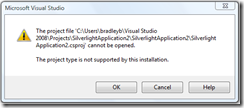
This is happening for users who have installed previous builds of Silverlight Tools and for one reason or another the Silverlight package for Visual Studio has been disabled. You can re-enable the Silverlight package by running the following command.
devenv.exe /resetskippkgs
The ASP.NET Silverlight controls show appear in the Toolbox for .aspx pages
This happens if the Silverlight SDK is installed before KB949325. As listed above the install order is important. To fix this uninstall the Silverlight SDK and re-install it.
Help Files don't show up in Visual Studio
To integrate the VS help files included in the Silverlight 2 SDK follow the instructions in this readme.txt installed with the SDK.
[Program Files]\Microsoft SDKs\Silverlight\v2.0\Documentation\VS-Help\Readme.txt
The installer is hung?
At the end of the installation process the installer appears to be hung.
The installer can take up to 10 minutes at the end of the installation process. What's going on? The last thing the installer does is merge the help dictionaries. If you've installed the help files for VS locally this can take some time. Don't kill the process, it's not hung.
Where to go for Installation Help?
Be sure to check out the Silverlight 2 Beta 1 readme for known issues.
If you run into installation issues not covered here please post your question in the "Installation and Setup" forum here: http://silverlight.net/forums/13.aspx
As many of you know Silverlight 2 Beta 1 was release today at MIX08. What an awesome day. The new applications under development based on Silverlight 2 are truly incredible! Check out http://www.microsoft.com/silverlight/
To get started with Silverlight 2 you can download "Silverlight Tools Beta 1 for Visual Studio 2008" here.
The Silverlight Tools installer will install everything needed to start working with Silverlight 2 in Visual Studio 2008.
It installs the following:
• Silverlight 2 Beta 1
• Silverlight 2 SDK Beta 1
• KB949325 for Visual Studio 2008
• Silverlight Tools Beta 1 for Visual Studio 2008
Even if you've previously installed Silverlight 1.0 or Silverlight 2 Beta 1 the installer will proceed and install the additional components.
That's it! You're now ready to start creating rich Internet applications with Silverlight 2 and Visual Studio 2008.
While the installation is that simple in most cases, there have been some installation issues reported. I've listed below the issues and solutions I've run into so far. I'll update this post if new issues are reported.
Installation Error
If you do run into an installation error, it's most like due to a previous installation of Silverlight 1.1 Alpha or any of the Silverlight SDKs, including the Silverlight 2 Beta 1 SDK. You must uninstall all these components before installing Silverlight Tools Beta1 for VS08. If you don't uninstall these products first you'll get this error dialog from the installer.
If you see this dialog, be sure to uninstall all the dependent components and restart the installer.
Can't Find KB949325 to Uninstall?
If you ever need to uninstall KB949325, you can do this through Add and Remove Programs. However it does not show up by default in Add and Remove Programs.
Instead you need to select "View Installed Updates"
Now you'll see all the updates and patches installed to applications on your computers. Scroll down and you'll find KB949325. It will be listed as:
It should not come as a surprise that if you uninstall KB949325, you will not be able to use Silverlight projects in Visual Studio. Only uninstall KB949325 if you're planning on returning VS08 to its RTM condition or if you're attempting to reinstall Silverlight Tools.
Prompt for installation source media
In some cases you may get a prompted for the installation CD-ROM for Visual Studio 2008.
Heath Stewart has an excellent blog post on some of the issues users are encountering when installing patches for Visual Studio 2008. You can read his entire post here. Heath has a new post specific to this prompt when installing Silverlight Tools here.
One of the scenarios causing this to happen with the Silverlight Tools installer is when Visual C++ is not installed. The other component that will cause this to happen is if you don't have the "Microsoft Visual Studio Web Authoring Component".
You can manually get around this. First you'll need to extract the individual installers from the Silverlight Tools Beta 1 for VS08 chained installer. To do this download and save the Silverlight Tools chained installer from here and save it locally.
To extract the individual installers run this command: silverlight_chainer.exe /extract
This will extract the following installers, along with other support files.
1. Silverlight.2.0.exe
2. VS90-KB949325.msp
3. silverlight_sdk.msi
4. VS_SilverlightTools_Beta1_Setup.exe
It critical that you install these components in the order listed above. (Silverlight 2, KB949325, SDK, Tools) To install KB949325 w/o being prompted for media run this command:
msiexec /p VS90-KB949325.msp /L*vx VS90-KB949325.log REINSTALL=ALL
Note: this command will require administrative rights and it does not add the KB to Add/Remove Programs.
To list these Silverlight tools in Visual Studio's Help->About dialog and to be able to uninstall these tools from Add/Remove Programs (ARP), install the patch again using the following command:
msiexec /p VS90-KB949325.msp /L*vx VS90-KB949325-2.log ADDLOCAL=KB947520,KB949325
Finally run the VS_SilverlightTools_Beta1_Setup.exe installer to complete the Silverlight Tools installation.
The project type is not supported by this installation
Even when installed successfully, some users have seen this error:

This is happening for users who have installed previous builds of Silverlight Tools and for one reason or another the Silverlight package for Visual Studio has been disabled. You can re-enable the Silverlight package by running the following command.
devenv.exe /resetskippkgs
The ASP.NET Silverlight controls show appear in the Toolbox for .aspx pages
This happens if the Silverlight SDK is installed before KB949325. As listed above the install order is important. To fix this uninstall the Silverlight SDK and re-install it.
Help Files don't show up in Visual Studio
To integrate the VS help files included in the Silverlight 2 SDK follow the instructions in this readme.txt installed with the SDK.
[Program Files]\Microsoft SDKs\Silverlight\v2.0\Documentation\VS-Help\Readme.txt
The installer is hung?
At the end of the installation process the installer appears to be hung.
The installer can take up to 10 minutes at the end of the installation process. What's going on? The last thing the installer does is merge the help dictionaries. If you've installed the help files for VS locally this can take some time. Don't kill the process, it's not hung.
Where to go for Installation Help?
Be sure to check out the Silverlight 2 Beta 1 readme for known issues.
If you run into installation issues not covered here please post your question in the "Installation and Setup" forum here: http://silverlight.net/forums/13.aspx
Subscribe to:
Posts (Atom)