Showing posts with label IIS. Show all posts

Friday, December 28, 2012

IIS - This implementation is not part of the Windows Platform FIPS validated cryptographic algorithms

IIS - This implementation is not part of the Windows Platform FIPS validated cryptographic algorithms

Have you ever got the "This implementation is not part of the Windows Platform FIPS validated cryptographic algorithms." exception while trying to use some of the classes in the "System.Security.Cryptography" namespace?
The exception normally thrown is a "TargetInvocationException" exception and the message that accompanies it is usually the unhelpful "Exception has been thrown by the target of an invocation". It is only when you drill down into the InnerException that you see the "This implementation is not part of the Windows Platform FIPS validated cryptographic algorithms." message. The reason that this exception is thrown is that you have tried to use a cryptographic algorithm that is not FIPS compliant.
What is FIPS compliance? FIPS stands for Federal Information Processing Standards. (link to more information) and are US Government standards that provide a benchmark for implementing cryptographic software.
WindowsXP and later operating systems have both FIPS compliant and non-compliant algorithms that can be used by developers. FIPS compliant algorithms are those that have been validated by the FIPS 140 program. One can call both the compliant and non-compliant algorithms as the check for FIPS compliance is by default turned off.

How do you turn on and off FIPS compliance checking:
Two methods:
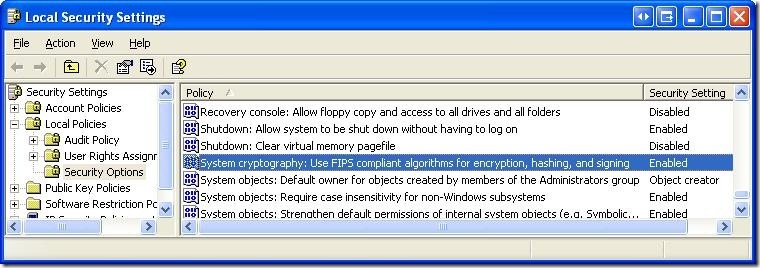
1. Go to Control Panel -> Administrative Tools -> Local Security Policy
Enable the setting for "System cryptography: Use FIPS compliant algorithms for encryption, hashing, and signing"
6jf244.tmp
2. Another method is to directly edit the registry by setting the following value to 0 (disable) or 1 (enable)
HKLM\System\CurrentControlSet\Control\Lsa\FIPSAlgorithmPolicy
Alternatively you can copy the following lines into a registry script file (.reg) and run it.
Windows Registry Editor Version 5.00
[HKEY_LOCAL_MACHINE\SYSTEM\CurrentControlSet\Control\Lsa]
"fipsalgorithmpolicy"=dword:00000001
Note: One thing that I am not certain off is that this option might be available only on Windows XP Professional OSs and not in the basic Windows XP OS. I havent been able to confirm this via documentation - but the option is not available on my home machine (Windows XP), but is available on my work machine (Windows XP Pro).


For Developers:
So what does this mean for developers? If you ever envision your software running on a government computer (especially in the US), you should turn on FIPS compliance checking. This way, your application that uses cryptography algorithms provided by the OS will work on all machines and you wont have to deal with the "Exception has been thrown by the target of an invocation".
For .NET Developers:
FIPS compliance checking (if turned on in the local security policy) I think was introduced starting in version 2.0 of .NET. Unfortunately, the MSDN documentation on FIPS compliance is pretty skimpy and there is no list of the algorithms in the "System.Security.Cryptography" namespace that are FIPS compliant. (Also there is no property that can be checked or an interface or base class that FIPS compliant algorithms implement - which would allow for runtime checking - hint, hint MS).
So here is a quick list that I obtained by using reflection (C# code is below)
FIPS compliant Algorithms:
Hash algorithms
HMACSHA1
MACTripleDES
SHA1CryptoServiceProvider
Symmetric algorithms (use the same key for encryption and decryption)
DESCryptoServiceProvider
TripleDESCryptoServiceProvider
Asymmetric algorithms (use a public key for encryption and a private key for decryption)
DSACryptoServiceProvider
RSACryptoServiceProvider
Algorithms that are not FIPS compliant
HMACMD5
HMACRIPEMD160
HMACSHA256
HMACSHA384
HMACSHA512
MD5CryptoServiceProvider
RC2CryptoServiceProvider
RijndaelManaged
RIPEMD160Managed
SHA1Managed


Thursday, November 10, 2011

HTTP Error 404.13 - Not Found : The request filtering module is configured to deny a request that exceeds the request content length


I was developing an application that allows user to upload files to the server using the <asp:FileUpload/> control. In order to make sure that users can upload large files, I configured the web.config as follows to allow larger files to be uploaded (The default setting is 4 MB):

<httpRuntime maxRequestLength="512000"/><!--To allow up to 500MB-->
?
While testing the file upload functionality from within the visual studio development server (Right clicking on the aspx file and selecting browse), I found it working quite fine. But surprisingly, after hosting the Asp.net web site onto IIS (IIS 7), I found the file uploading functionality was no longer working, and, it was broken while trying to upload large files (I was trying with a file over 40MB in size). Following is the screen shot of the error message that I got:


Figure : The error message from IIS while trying to upload a large file

The error page also suggested me to do the followings:

"Verify the configuration/system.webServer/security/requestFiltering/requestLimits@maxAllowedContentLength setting in the applicationhost.config or web.config file."

So, as suggested, I did the following configuration in the web.config of my Asp.net web site(By setting maxAllowedContentLength value in Bytes):

<system.webServer>
  <modules runAllManagedModulesForAllRequests="true"/>
  <security>
    <requestFiltering>
      <requestLimits maxAllowedContentLength="512000"></requestLimits>
    </requestFiltering>
  </security>


Guess what, it didn't work out! After modification when I tried to upload the file again, the same problem occured again. What happened?

According to the error message, the web.config or applicationhost.config should be configured according to the above suggestion. Modifying web.config didn't work out. So, the applicationhost.config could be modified to see what happens.

The applicationhost.config is the configuration file of IIS (IIS7.0 or heigher). Does that mean IIS has a Request size validation? 


Yes it has. Until IIS 7.0 there was no Request size validation, but since IIS 7.0, the Request length is verified by IIS first, before deliverying the Request to Asp.net.

So, to be true, it doesn't really make any sense to increase the maxAllowedContentLength value in web.config. The Request dies even before reaching the Asp.net. So, whatever is to be configured, it has to happen at IIS.

Well, as I figured out, there are two ways you can configure this value in IIS:

1. Configuring the applicationhost.config

Open the %WINDIR%\System32\inetsrv\config\applicationHist.config in editor and specify the following configuration within the security/requestFiltering section(By setting maxAllowedContentLength value in Bytes):

<requestFiltering>
      <requestLimits maxAllowedContentLength="512000000"></requestLimits>
</requestFiltering>

?
Note:

Modifying the above configuration worked for me in one PC (Running Windows 7+IIS 7.0), but, didn't work on another one (Running Windows Vista + IIS 7.0). After configuring the applicationHost.config file, I tried to upload the large file and the same error message was appearing again. I don't know why, but, if you have the same experience, applying the following approach (Configuring via IISManager) would definitely work.

2. Configuring via IISManager

Open the IIS Manager and select the site or application you need to configure in the left panel

Select "Features View" and double click on the "Request Filtering" icon.


Figure : Request Filtering

Note :

If you can't find the "Request Filtering"icon, you need to install the IIS Administration Pack from this link :http://www.iis.net/download/AdministrationPack. This is a lightweight installation which shouldn't take too much time on a decent internet speed.

Double clicking on the "Request Filtering"icon will bring up the Request filtering configuration window. Right click on the window and select the "Edit Feature Settings" option:


Figure : Edit Feature Settings option in IIS

Finally, specify the Maximum allowable content length (In Byte) in the following window and click "OK" to save:


Figure : Specifying Maximum allowable content length in Bytes

This worked perfect for me and I was able to upload the large file now without any problem. Hope, this will work for you too :)